

Requirement:
To have multi-selection lookup of product category in a tree view on form control in Microsoft Dynamics 365 finance and operation.
Solution:
Developing a custom form to control the multi selection on the tree view and calling it on the form control lookup method.
Creating new multi selection tree view form “EcoResCategoryMultiLookup” have datasource “EcoResCategoryHierarchy” and “EcoResCategory” table . Add Tree control in the form with the following properties , in my case I named that Tree control as ctrlFormTree. (as shown in Figure 1.1)
- Auto Declaration = Yes
- CascaseSelect = No
- Check Box = Yes
- Single Selection = No
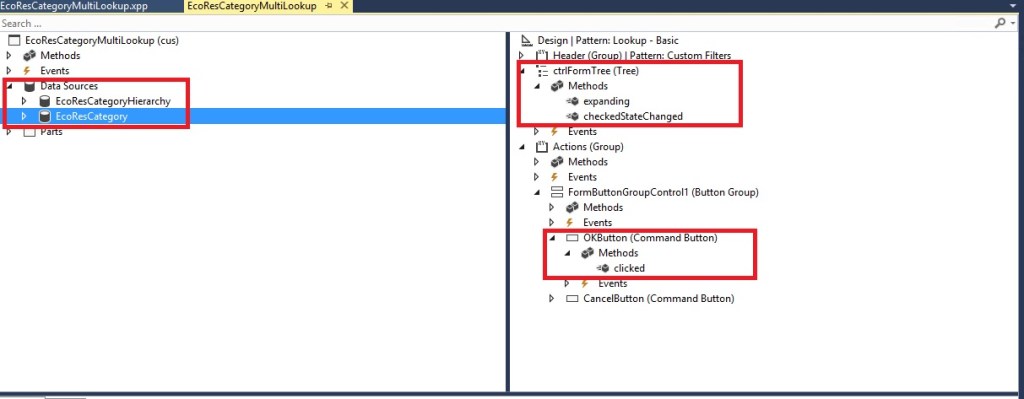
after setting the properties, we have to assign the datasource and the root element of the tree view by using class “EcoResCategoryTreeDatasource”
In the run method of the form use the following way to assign the root element and the datasource of the Tree control. In my case I am using product category to be displayed so I am using EcoResCategory table for the datasource of the Tree control.
 public void run()
    {
        QueryBuildRange     range;
        EcoResCategory      root = null;

        if (isConfigurationkeyEnabled(configurationKeyNum(Retail))
            && isMultiHierarchy)
        {
            selectedCategoryHierarchy = EcoResCategoryHierarchy::findByName(HierarchySelector.valueStr());
        }

        // display tree only if hierarchy exists
        if (selectedCategoryHierarchy.RecId)
        {
            range = ecoResCategoryHierarchy_ds.query().dataSourceTable(tablenum(EcoResCategoryHierarchy))
.addRange(fieldnum(EcoResCategoryHierarchy, RecId));
            range.value( queryValue(selectedCategoryHierarchy.RecId ) );
            ecoResCategoryHierarchy_ds.executeQuery();

            root = EcoResCategory::getRoot(selectedCategoryHierarchy.RecId);

            //tree view
            hierarchyTree = new EcoResCategoryTreeDatasource(  ecoResCategory_ds,
                                                               ctrlFormTree,
                                                               fieldnum(EcoResCategory, RecId),
                                                               fieldnum(EcoResCategory, ParentCategory),
                                                               fieldnum(EcoResCategory, Name),
                                                               false /* No ID in description */,
                                                               true,
                                                               0,
                                                               selectedCategoryHierarchy,
                                                               ecoResCategoryHierarchy_ds,
                                                               lookupParameters);

            if (root.RecId)
            {
                hierarchyTree.initRoot(root.Name, root.RecId, hierarchyTree.image());
                //select any previously selected category, only if the hierarchies match.
                //and the name was not edited
                if (selectedCategory.RecId && selectedCategory.CategoryHierarchy == selectedCategoryHierarchy.RecId)// && !callingControl.hasChanged())
                {
                    NameFilter.parmFilterValue(selectedCategory.Name);
                    hierarchyTree.expandAndSelect(selectedCategory.RecId);
                }
            }
            canSelect = false;
        }
        else
        {
            info("@SYS134292");
        }

        super();

        if (selectOk)
        {
            element.selectMode(callingControl);
        }

    }
Note that in above run method “selectedCategoryHierarchy” is “EcoResCategoryHierarchy” table which is initialized in init method from the calling control values.
After run method we need to override the control “checkedStateChanged” method from which we will be handling the checked records and filling it in the container to mark the records. (as shown in Figure 1.1)
public void checkedStateChanged(int _Idx, FormTreeCheckedState _newState)
        {
            FormTreeItem formTreeItem ;
            FormTreeCheckedState currentState;
            int isCheckedBefore;

            super(_Idx, _newState);

            formTreeItem = ctrlFormTree.getItem(_Idx);

            if (formTreeItem != null)
            {
                currentState = formTreeItem.stateChecked();
                switch (currentState)
                {
                    case FormTreeCheckedState::Unchecked:
                        isCheckedBefore = conFind(selectedNodesIds,EcoResCategory::find(ctrlFormTree.getItem(_Idx).data()).RecId);
                        if(isCheckedBefore)
                        {
                            selectedNodesIds = conDel(selectedNodesIds,isCheckedBefore,isCheckedBefore);
                        }
                        break;
                    case FormTreeCheckedState::Checked:
                        selectedNodesIds += EcoResCategory::find(ctrlFormTree.getItem(_Idx).data()).RecId;
                        break;
                    case FormTreeCheckedState::Partial:
                        // TO-DO create Label
                        info("select the nodes individually");
                        break;
                    default:
                        // Do Nothing
                        break;
                }
            }


        }
once the checking and unchecking is done on the tree view we have to mark the formdatasource in order to retrieve it on the lookup control.
To achieve the marked records from the container we will be having one command button named as OK and on its clicked event we will be having the following code.
 public void clicked()
        {
            int             i;
            Common          selectedCategoriesHierchy;

            for (i = 1; i <= conLen(selectedNodesIds); i++)
            {
                selectedCategoriesHierchy = EcoResCategory::find(conPeek(selectedNodesIds, i));
                EcoResCategory_ds.findRecord(selectedCategoriesHierchy);
                EcoResCategory_ds.mark(true);
            }

            super();

        }
Remember to override the closeSelect() method of the form and to comment the super call of the method in order to return the selected values of the datesource.
one the above process is done now we have to call the above form in other form’s control lookup method.
The process is same to override the string edit control lookup method and call the custom form as below,
public void lookup()
        {
            FormDataSource formDS;
            FormRun formRun;
            Args args = new Args();
            args.name(formStr(EcoResCategoryMultiLookup));
            args.caller(this);
            args.record(lookupCategoryHierarchy);
            args.lookupField(fieldNum(EcoResCategory, RecId));
            args.parmObject(lookupParameters);

            formRun = classfactory.formRunClass(args);

            formRun.init();
            formDS = formRun.dataSource(2);
            this.performFormLookup(formRun);

            formRun.wait();
            if (formRun.closedOk())
            {
                 //method to get the selected values of the tree view and display on this control
                 //selectedStr is the container having names of the selected records
                //selectedId is the conatainer having recIds the selected records
                element.getSelected(formDS);
                this.text(SysOperationHelper::convertMultiSelectedValueString(selectedStr));
                selectedCategory1 = selectedId;
            }
        }
Below is the getSelected method.
public void getSelected(FormDataSource _formDS)
    {
        EcoResCategory selectedEcoResCategory;
        Common         common;
        int            recordsMarked = 0;

        selectedId = connull();
        selectedStr = connull();

        for (common = getFirstSelection(_formDS); common; common = _formDS.getNext())
        {
            recordsMarked++;
        }

        if (recordsMarked > 0)
        {
            for (common = getFirstSelection(_formDS); common; common = _formDS.getNext())
            {
                if (Common.TableId == tableNum(EcoResCategory))
                {
                    selectedEcoResCategory = EcoResCategory::find(Common.RecId);

                    selectedId += selectedEcoResCategory.RecId;

                    selectedStr += selectedEcoResCategory.Name;
                }
            }
        }
    }
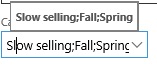
Output:

Thanks,
Happy Daxing with Rizz 😉
 Happy Daxing with Rizz
Hi Rizwan,
We try your code but not working for us can you please provide project if you have. We are getting lookup but selection not working.
LikeLike
sure kindly ping me on my email address i.e. rizz@ax-d365.com
LikeLike
Hi Rizwan,
And me please can you please provide project if you have.
With Best Regards
LikeLike
Email me on rizz@ax-d365.com, I can share with you the project.
LikeLiked by 1 person